


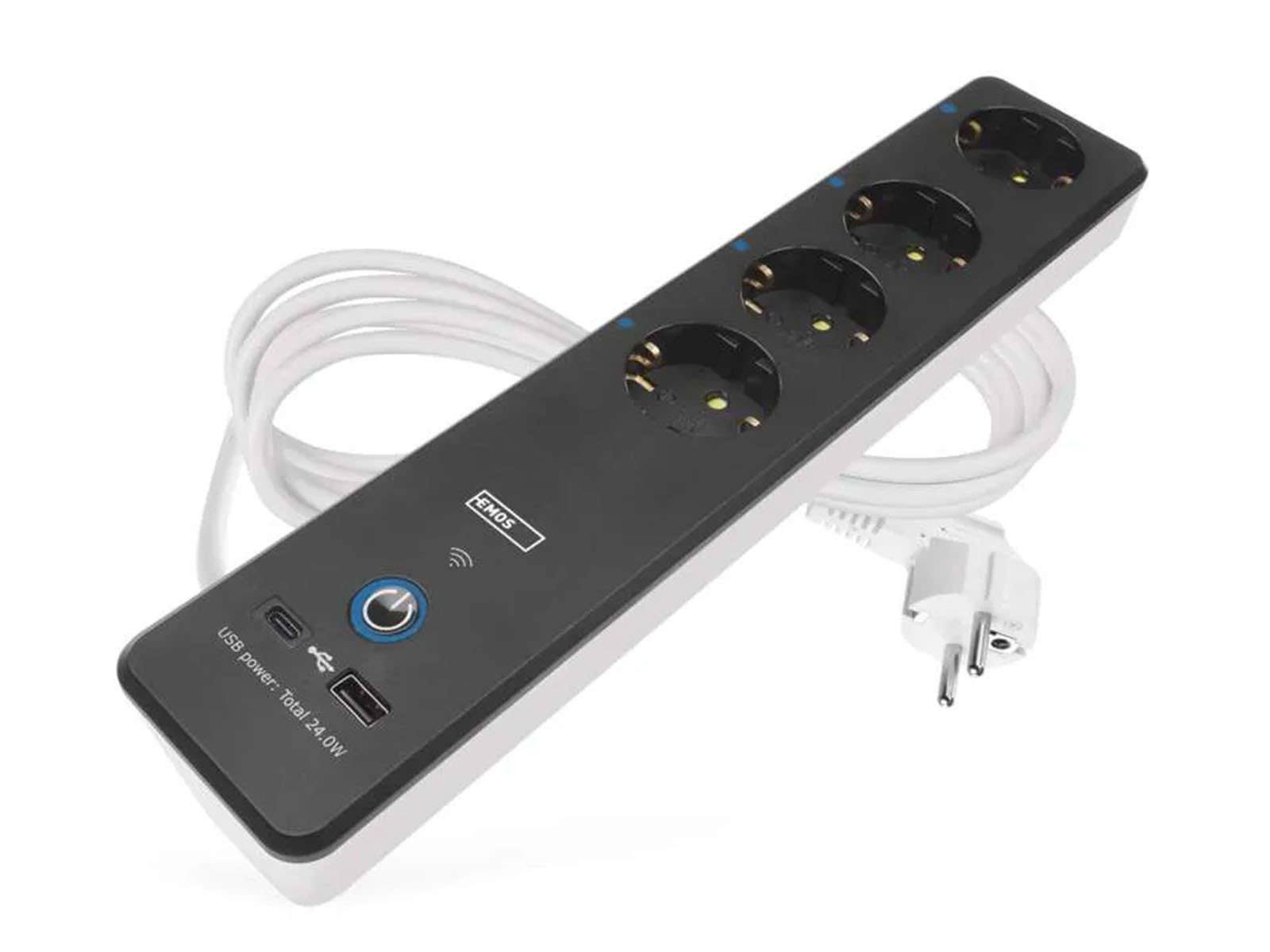


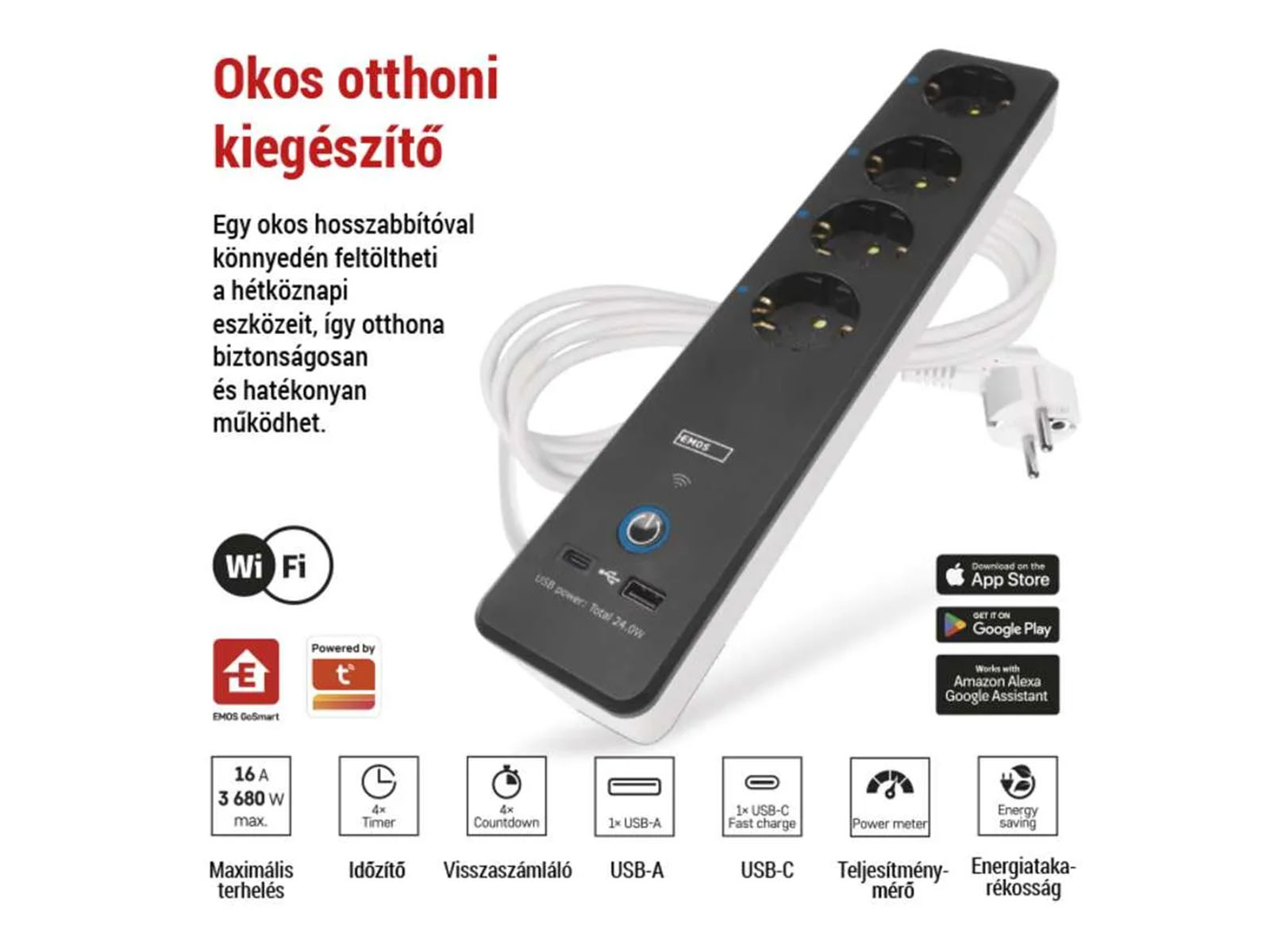


GoSmart 4 extension sockets with remote and USB, Switch, black, cable 2m

In Stock
4 grounded sockets, 1 USB-A (2.1A) and 1 USB-C (3A, QC).Can be controlled remotely, even individually, depending on which connected device we want to turn on or off. Remote or app controllable
59,00 €
Price without 24% VAT: 47,58 €
2 in stock
GoSmart power outlets extension (4 grounded+USB) Wi-Fi control with smart devices
Using the EMOS GoSmart socket, we can control our electrical devices connected to the socket, schedule them, and turn them on and off even from far away from home using smart devices (mobile phone, tablet).
The 4 grounded sockets, 1 USB-A (2.1A) and 1 USB-C (3A, QC) port on the hub can be controlled remotely, even individually, depending on which connected device we want to turn on or off.
In order to take advantage of the GoSmart Wi-Fi socket, you need to install the EMOS GoSmart application on your smart device, e.g. the EMOS GoSmart application, which is available for Android and IOS . After installation, it can be controlled via a mobile phone via a Wi-Fi network, even remotely. Amazon Alexa and Google Assistant compatible product.
The Tuya Smart app is available for Android and Apple iOS .
The status of the sockets can be continuously monitored on the phone, so we can be informed about power outages, for example, or we can check the status of our connected device and how much energy it uses (KWh). We can also find out data related to current (mA), power (W) and voltage (V).
Timer function
Using the smart switch, we can also set the timing of our devices’ operation. We can set exactly to the minute when our connected device should turn on or off. For example, if we want our home to be pleasantly warm when we arrive home in the summer, we can set how long before the air conditioner should turn on.
Pairing:
EMOS GoSmart:
- Open the EMOS GoSmart app and confirm the privacy policy by clicking the Accept button.
- If you haven’t registered yet, select the registration option and enter a valid email address and choose a password.
- Confirm your agreement to the privacy policy and then register.
- After logging in, select Add Device. Select your device within the GoSmart product category.
- Select the Wi-Fi network you want to connect your device to and enter its password.
- Place it in the outlet, then wait 10 seconds with the power off, then turn the power on.
- Press and hold the RESET button for 5 seconds and make sure the indicator light is flashing. If so, confirm.
- Then the socket will be automatically searched for and if it appears on the display, after adding it, all you have to do is press the done button.
Tuya Smart:
- Plug the power strip into the outlet.
- Turn on the Wi-Fi connection on your smart device.
- Open the Tuya Smart application and, after logging into your user account, press the “Add Device” button. Within this, select the “Electrician” option and the “Distributor” (WI-FI) product. Then you can choose whether you want to connect via Wi-Fi.
- Tap “Next” and wait until the device addition is complete.
- After pairing, you will find the paired device under the “All Devices” tab.
| Raw material | Plastic |
| Number of sockets | 4 pieces |
| ANRO identifier | 41501 |
| Current | 16 Amps |
| Built-in switch | Yes, equipped with a switch |
| Voltage | 230 Volts (50/60Hz) |
| Warranty period | 2 years |
| Manufacturer | EMOS (P1422SM) |
| IP protection level | IP20 |
| Maximum load capacity | 3680 Watts |
| Size: length (mm) | 332 mm |
| Size: height (mm) | 45 mm |
| Size: width (mm) | 68mm |
| Mobile application | Yes. Smart device. |
| Operating temperature | -10°C – +40°C |
| Weight | 784g |
| Shipping fee | 1 890 Ft |
| Color | White-black |
| Remote control | WiFi (2.4Ghz) |
| Type | Socket (2P+F) with USB connector |
| USB | Yes |
| Cable length (m) | 2 meters |
| Wire size (cross section) | 1.5 mm2 |
Data
| Finish Colour | |
|---|---|
| In stock (Vana-Tartu mnt 79A) | Yes |
| Brands | |
| Out of Stock Delivery Time From Supplier | 7-14 Days |
Based on 0 reviews
Only logged in customers who have purchased this product may leave a review.










There are no reviews yet.